Mounting read-only drive volumes in Microsoft Windows
To analyze a drive without a hardware write blocker, I wanted to mount the drive in read-only mode. I do not have a write blocker and rather than fire up a copy of Helix or a similar tool on my spare machine (which is painfully slow), I would rather perform analysis on my workstation. First step is to disable auto mounting of devices in Microsoft Windows by running 'cmd' in an administrative user context and then execute 'mountvol /N' to enable readonly mounting of newly attached drives and volumes.
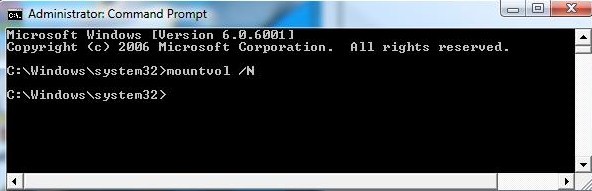
Here is how to list the drives and volumes:
DISKPART> list disk
Disk ### Status Size Free Dyn Gpt
-------- ---------- ------- ------- --- ---
Disk 0 Online 233 GB 0 B
Disk 1 Online 932 GB 0 B *
Disk 2 Online 932 GB 0 B *
Disk 3 No Media 0 B 0 B
Disk 4 Online 3911 MB 0 B DISKPART> list vol
Volume ### Ltr Label Fs Type Size Status Info
---------- --- ----------- ----- ---------- ------- --------- --------
Volume 0 E DVD-ROM 0 B No Media
Volume 1 H BLACK_DAHLI UDF DVD-ROM 3214 MB Healthy
Volume 2 F U3 System CDFS CD-ROM 8 MB Healthy
Volume 3 C NTFS Partition 233 GB Healthy System
Volume 4 D data NTFS Partition 931 GB Healthy
Volume 5 Partition 931 GB Healthy
Volume 6 G Removable 0 B No Media
Volume 7 I FAT32 Removable 3911 MB Healthy
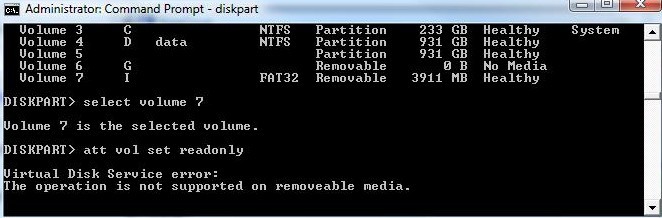
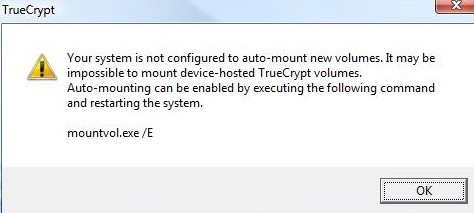
So I decided to try a spare drive in the system and I found that when attempting to mount a TrueCrypt volume I got an error telling me that auto-mount is not supported and I would have to re-enable it.
Continuing on my quest I was able to mount a spare hard drive volume read only, note you may also set the whole disk to read only.
DISKPART> select volume 5 Volume 5 is the selected volume. DISKPART> att vol set readonly Volume attributes set successfully. DISKPART> detail vol Disk ### Status Size Free Dyn Gpt
-------- ---------- ------- ------- --- ---
* Disk 2 Online 932 GB 0 B * Read-only : Yes
Hidden : No
No Default Drive Letter: Yes
Shadow Copy : No
Dismounted : Yes
BitLocker Encrypted : No
The next step will clear the read only status.
DISKPART> att vol clear readonly
Volume attributes cleared successfully.
Do not forget you may want to enable auto mounting again.
C:\Windows\system32>mountvol /N
A second and much easier alternative for USB devices is a small application that changes a registry entry called ThumbScrew. It alters a registry entry and though there is no guarantee that windows still will not access the drive it is a quick fix for this scenario. My plan is to use both methods. First disable the registry setting and then using drive part set the read only flag.